

- Manage a password policy across multiple applications
- Access multiple applications securely
- Reduce the risk of lost or forgotten passwords
- Enabling SAML will mandate all users to sign in only via SAML.
- Okta, Google and Azure AD are the supported IdPs. If you are using a different IdP, please raise a request to Amplify support (support@amplify.xyz).
- Only one IdP can be configured at a time.
- The team member’s email address must be present in Amplify and the IdP.
Terminology
Team Member:A Team Member is an employee of the organization, say, Acme Inc, and is an authorized user of Acme Inc’s Amplify user interface. Authentication:
The verification mechanism that certifies an individual is the actual person they claim to be. IdP:
Identity Provider (IdP) is the platform or application that provides authentication for the member. SP:
Service Provider (SP) is the application that needs authentication for allowing access to the member. For the entirety of this document, Amplify is the Service Provider. Login URL:
This URL will take you to the IdP’s login page asking for your credentials. Login URL is provided by your IdP and must be added in Amplify while integrating. X.509 Certificate:
Amplify accepts only X.509 Certificates to validate the authenticity of an IdP.
Login Options
You can log in to Amplify using one of the ways listed below.Sign in via IdP
- Log into your IdP.
- Select Amplify from the list of applications.
- You will be taken to the Amplify Dashboard.
Sign in via Amplify
- On the login page, click Log in with SSO.
- Enter the email in the text box provided and click Sign in.
- You will be taken to your IdP’s login screen. Enter your credentials and click Sign In.
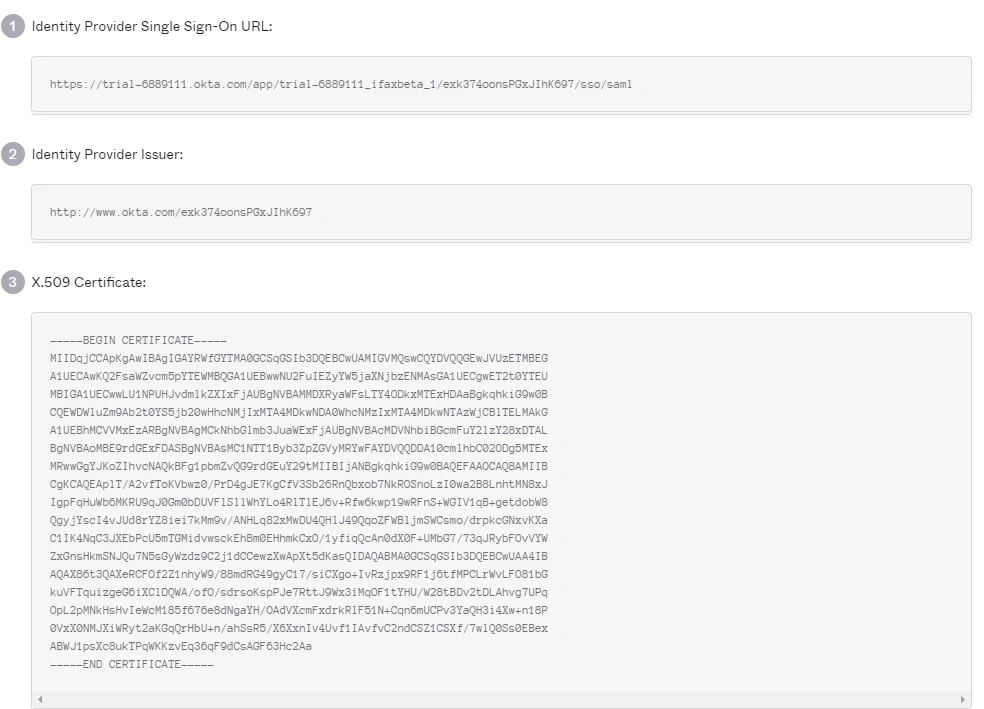
Okta as IdP
You can add the Amplify app in Okta using the steps below:- Log in to your Okta account and go to Applications and Create App Integration.
- Use the following values:
- https://app.amplify.xyz/login/ – for ACS URL (Assertion Consumer Service URL)
- https://app.amplify.xyz/ – for Entity ID
- Click View Setup Instructions under the Sign On tab to get the:
- Login URL
- SAML Certificate
\
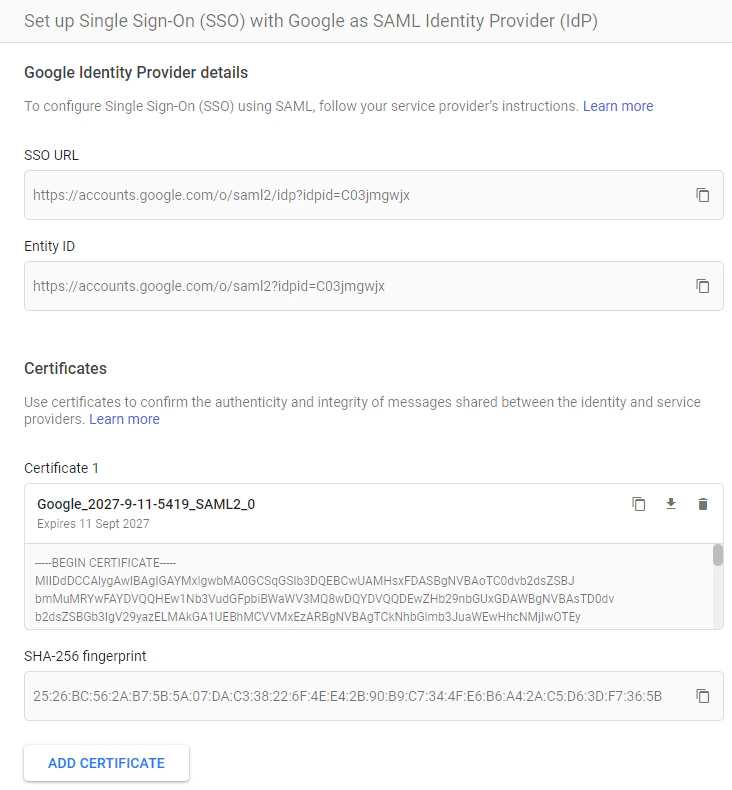
Google as IdP
You can add the Amplify app in Google using the steps below:- Log in to your Google admin account and search for Amplify under Add applications.
- Use the following values:
https://www.ifaxapp.com/login/– for ACS URL (Assertion Consumer Service URL)https://www.ifaxapp.com/– for Entity ID
- Click View Setup Instructions under the Sign On tab to get the:
- SSO URL
- SAML Certificate
\
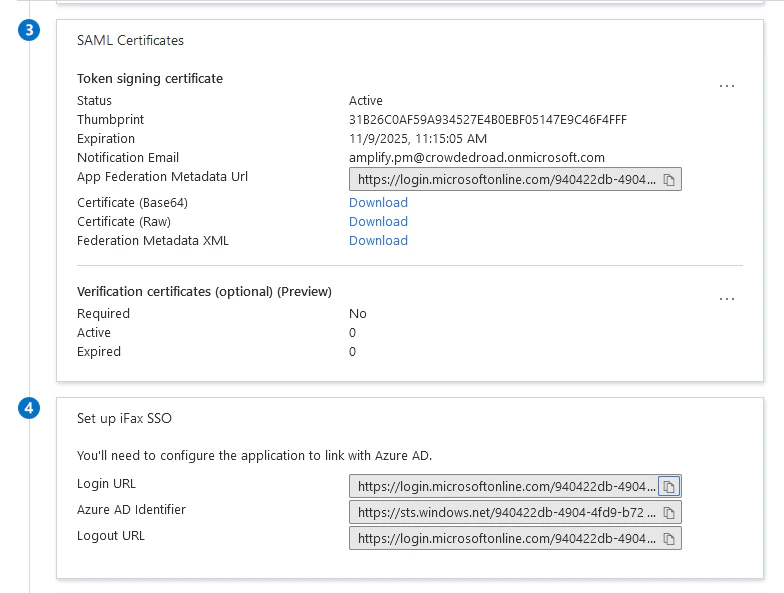
Azure AD as IdP
You can add the Amplify app in Microsoft Azure Active Directory using the steps below:\
- Sign in to your Microsoft Azure site (through portal.azure.com).
- Go to Azure Active Directory → Enterprise applications → New application → Non-gallery application and add an application by naming it Amplify.
- Go to the newly created Amplify application and select Single sign-on found on the left pane and choose SAML.
- Click Edit against the Basic SAML Configuration section and enter:
https://www.ifaxapp.com/– for Identifier (Entity ID)https://www.ifaxapp.com/login/– for Reply URL (Assertion Consumer Service URL)
- Scroll down to the Setup Amplify section. Copy the Login URL and paste it in the field provided in Amplify’s SAML Configuration page.
- In the SAML Signing Certificate section, use the URL given against App Federation Metadata URL and copy the content present between the start and end tags of
<X509Certificate>. Paste it in Amplify’s SAML Certificate field.
\
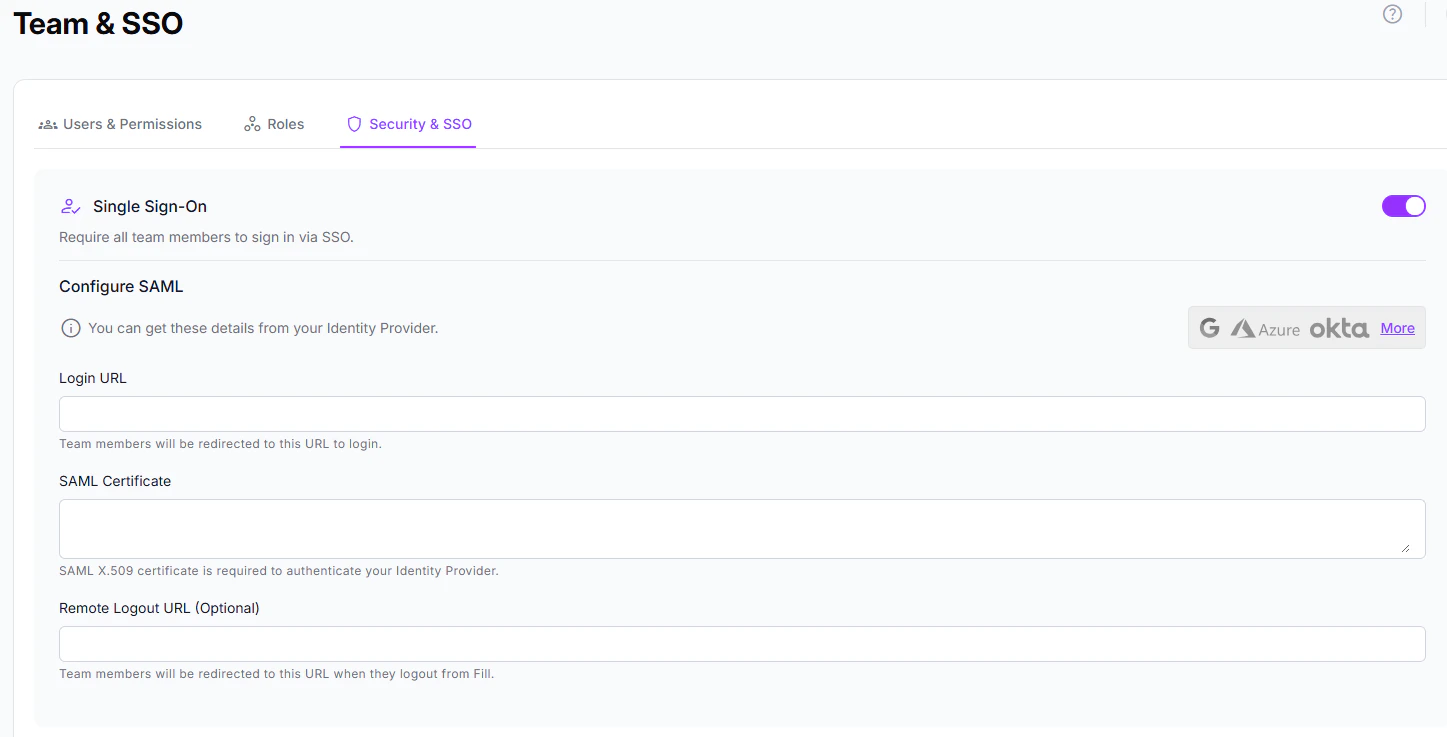
Configure SAML in Amplify
- Log in to Amplify and navigate to
Settings → Team & SSO → SSO. - Enable Single Sign-On.
- Paste the Login URL and the X.509 Certificate retrieved from the IdP.
\
Disable SAML
To disable SAML, go to Settings → Team & SSO → SSO and disable Single Sign-On. When you disable SAML in Amplify, your team members will be notified that SAML has been disabled and they should sign in using custom credentials.Email Notifications
Your team members will receive a system-generated email during the following events:- When an admin enables SAML for the organization’s Amplify site
- When a new team member is added to the organization’s Amplify site
- When SAML is disabled