A SWA app integration provides Single Sign-On (SSO) to external applications that don’t support proprietary federated sign-on methods. SWA works with any web-based application. After you successfully create your SWA integration and assign it, end users can click the tile in their dashboard to launch your app. The username and password fields are populated, and the user signs in to the app automatically.

Setup SWA App

Go to Application > Create App Integration.
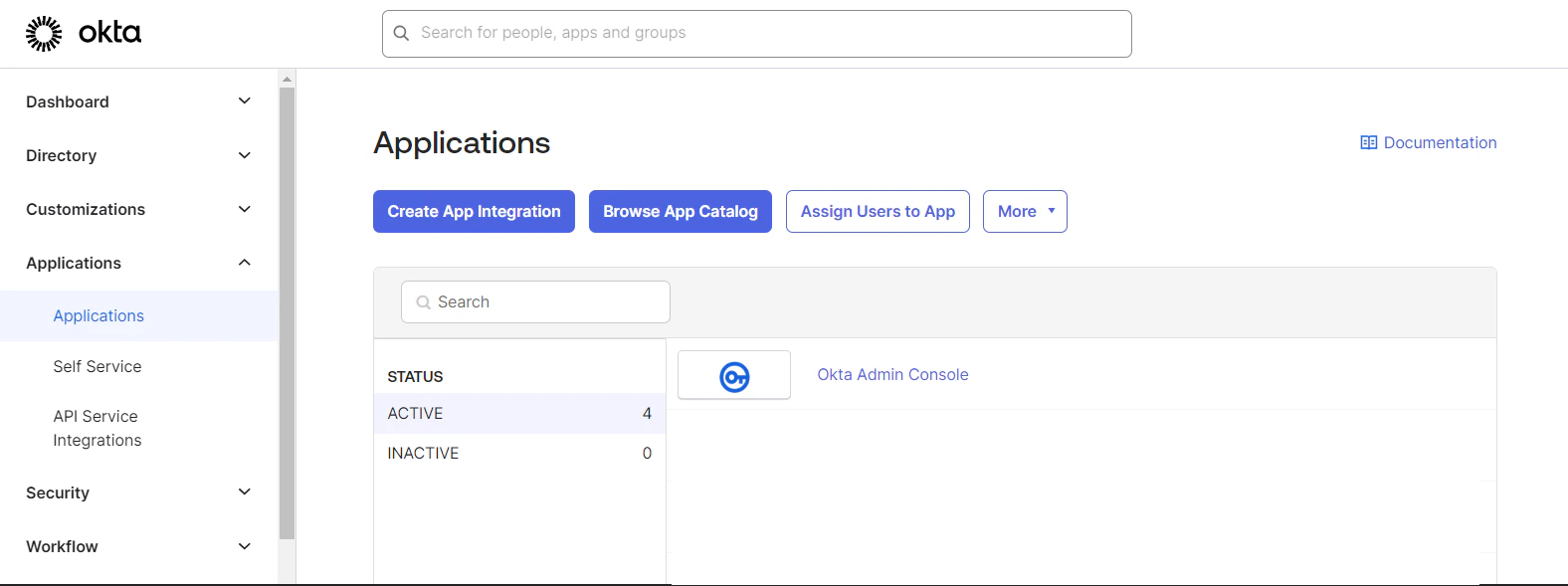
Image
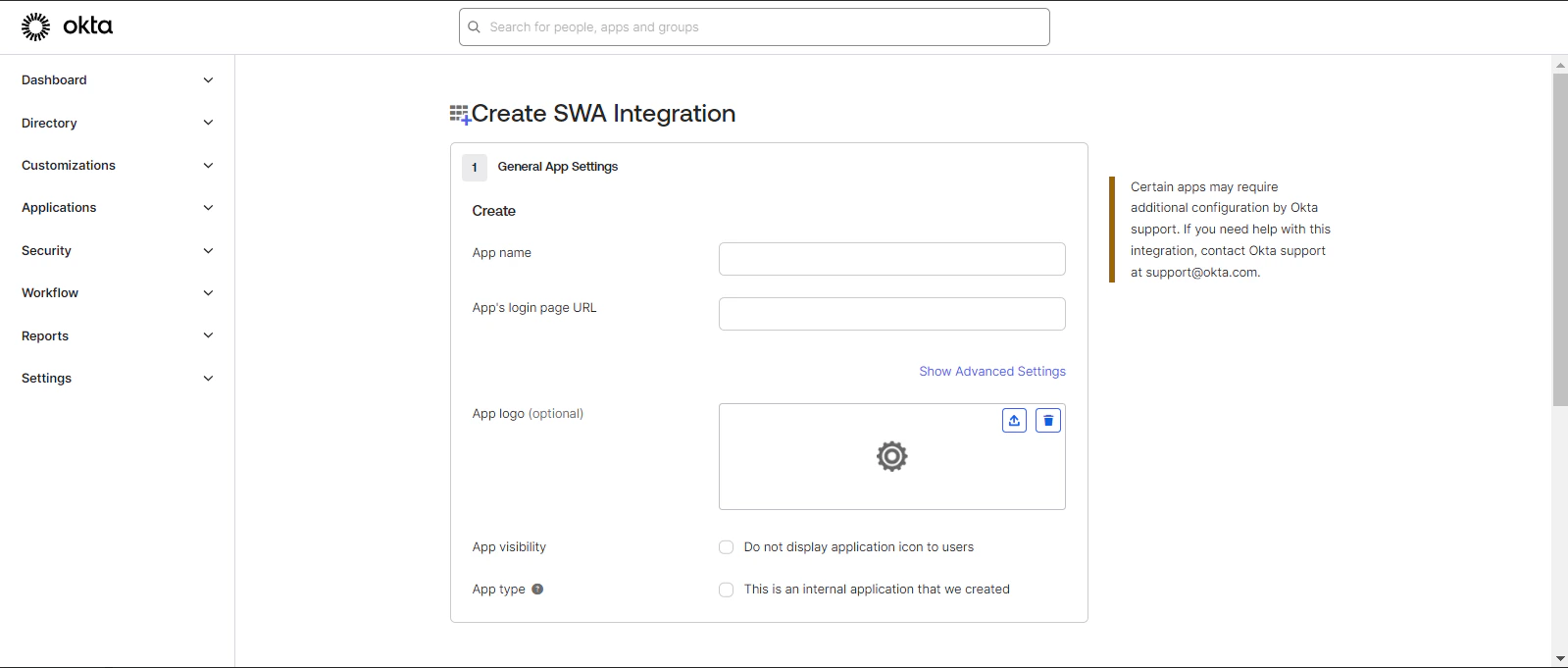
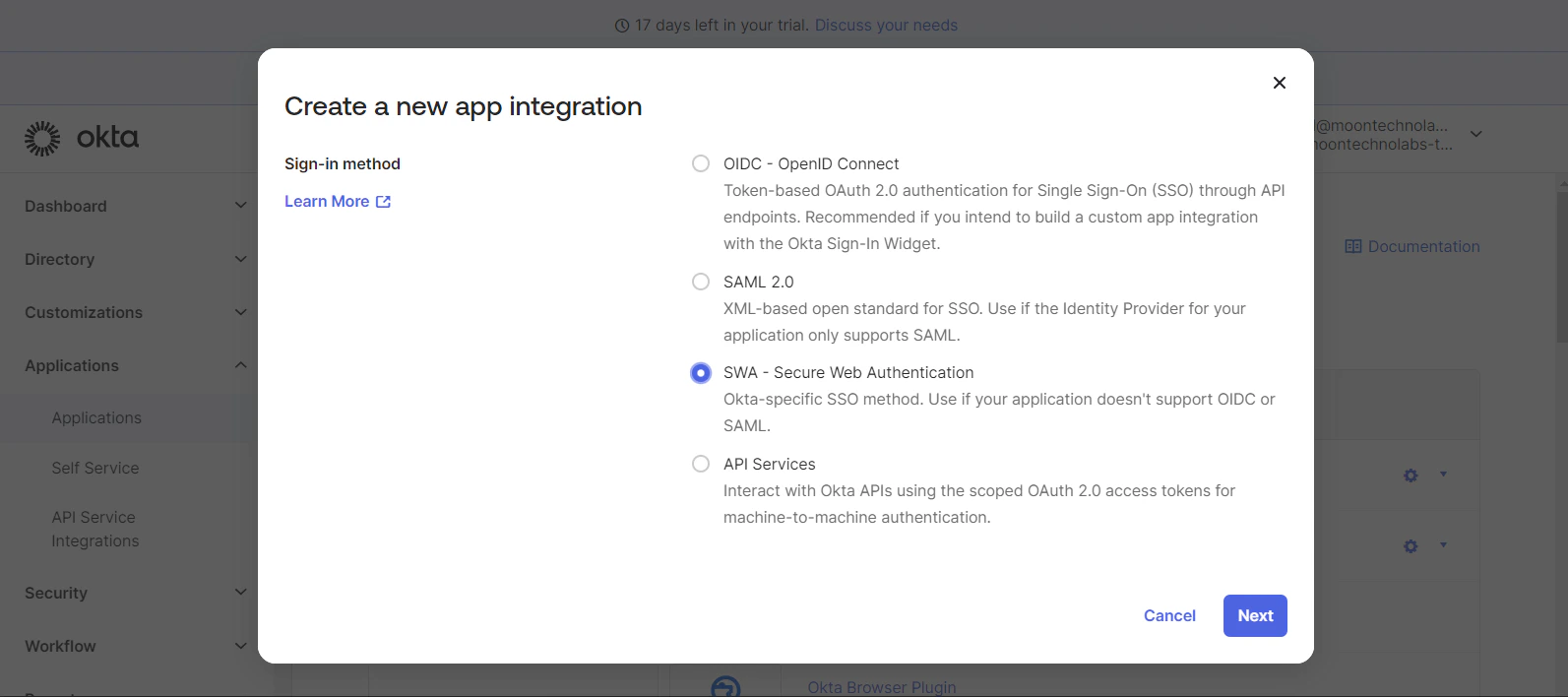
Select app type as SWA.
Image
Provide details for General Settings: App Name: Your app name
App’s login page URL: https://ifaxapp.com/login/
Image
Once the app is saved, you need to change the app type to SCIM.

Setup Provisioning

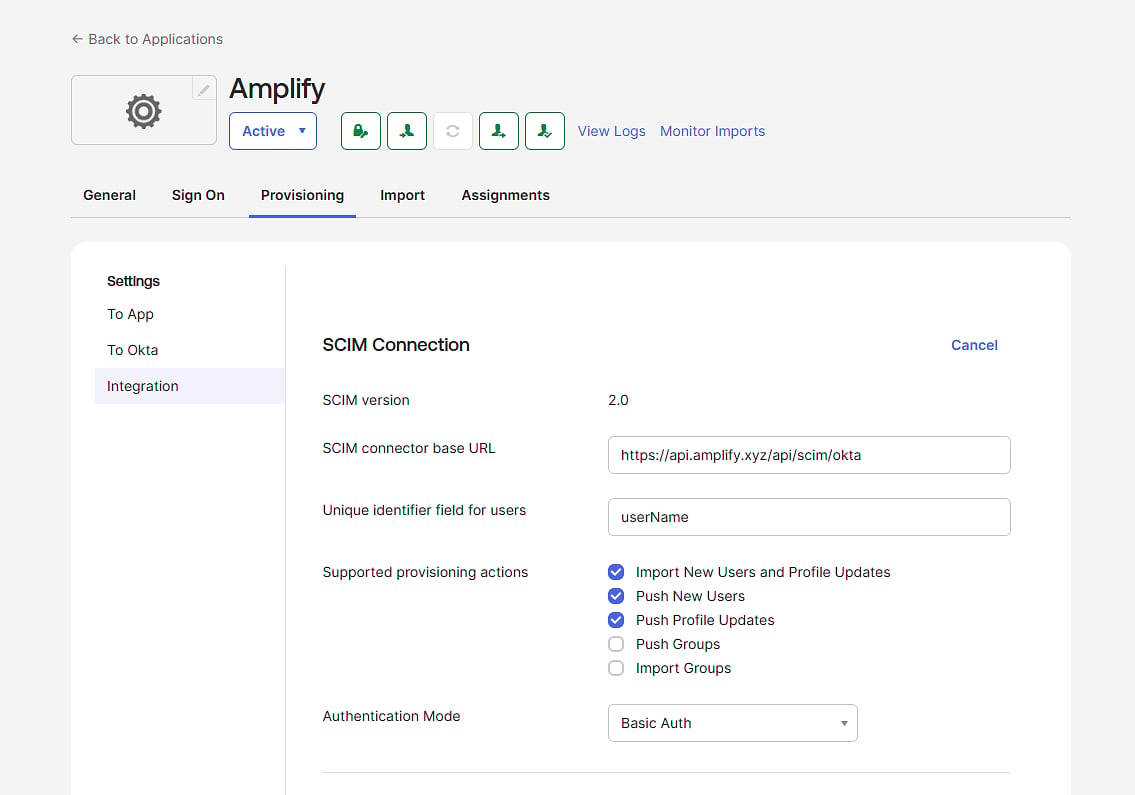
You can set up provisioning for the app with the following steps: Go to Provisioning > Integration and click Edit.

Manage SCIM Connection

SCIM connector base URL: https://www.ifaxapp.com/live/Oktawebhook/index\\ Unique identifier field for users: userName
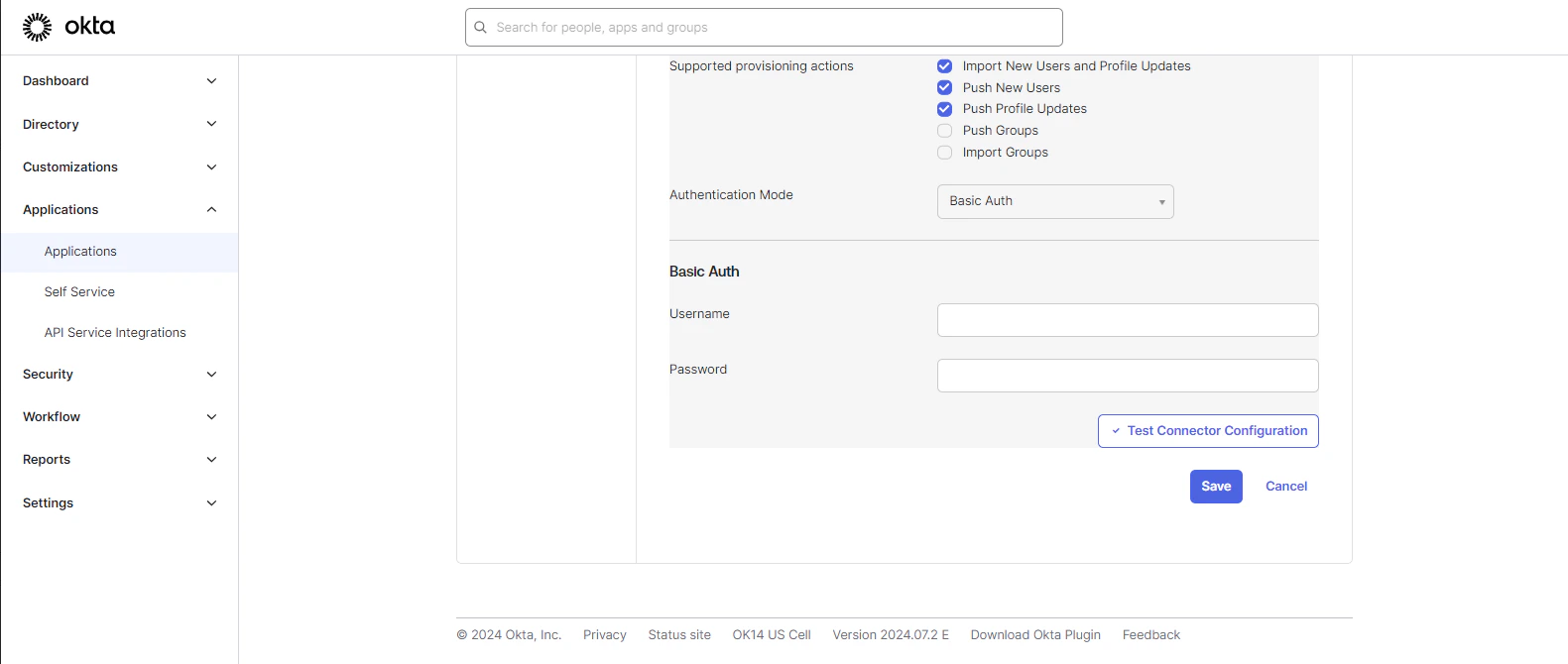
Supported provisioning actions:
Image

Import New Users and Profile Updates, Push New Users, Push Profile Updates
Select Authentication Mode: Basic Auth You need to add Amplify credentials. Username: Amplify Email
Password: Amplify Password
Image
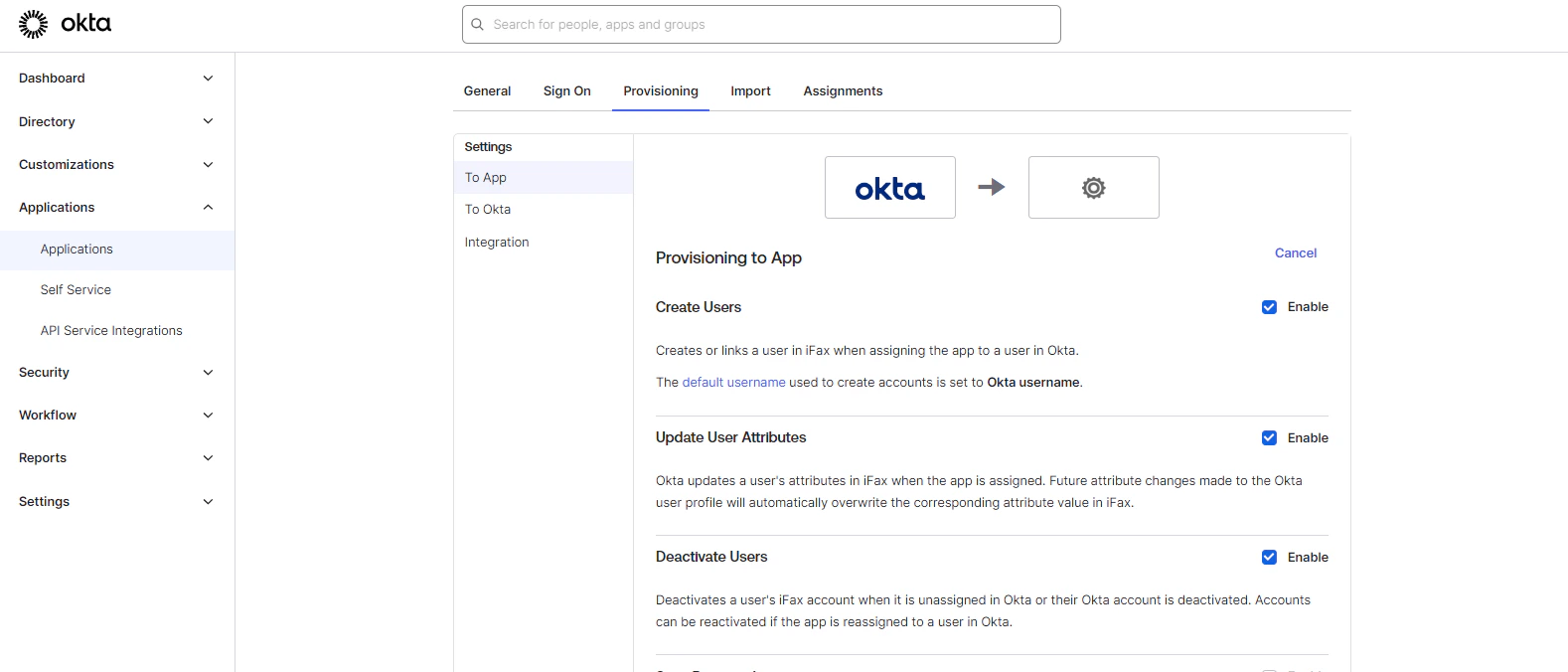
Be sure to test the connector configuration before saving. Go to Provisioning > To App Enable the following Provisioning to App options: Create Users
Update User Attributes
Deactivate Users
Image

Add Attribute for Permission

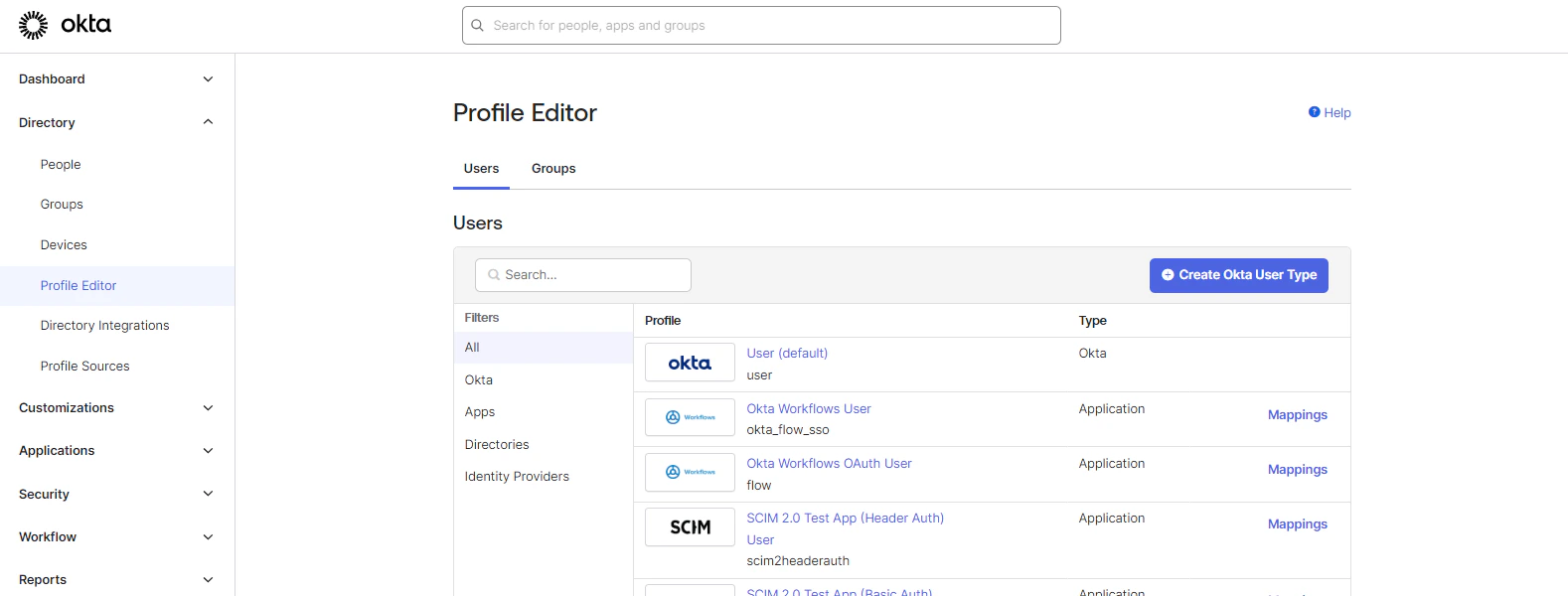
To add a custom attribute for permission, follow these steps: Go to Profile Editor Search for your app.
Image
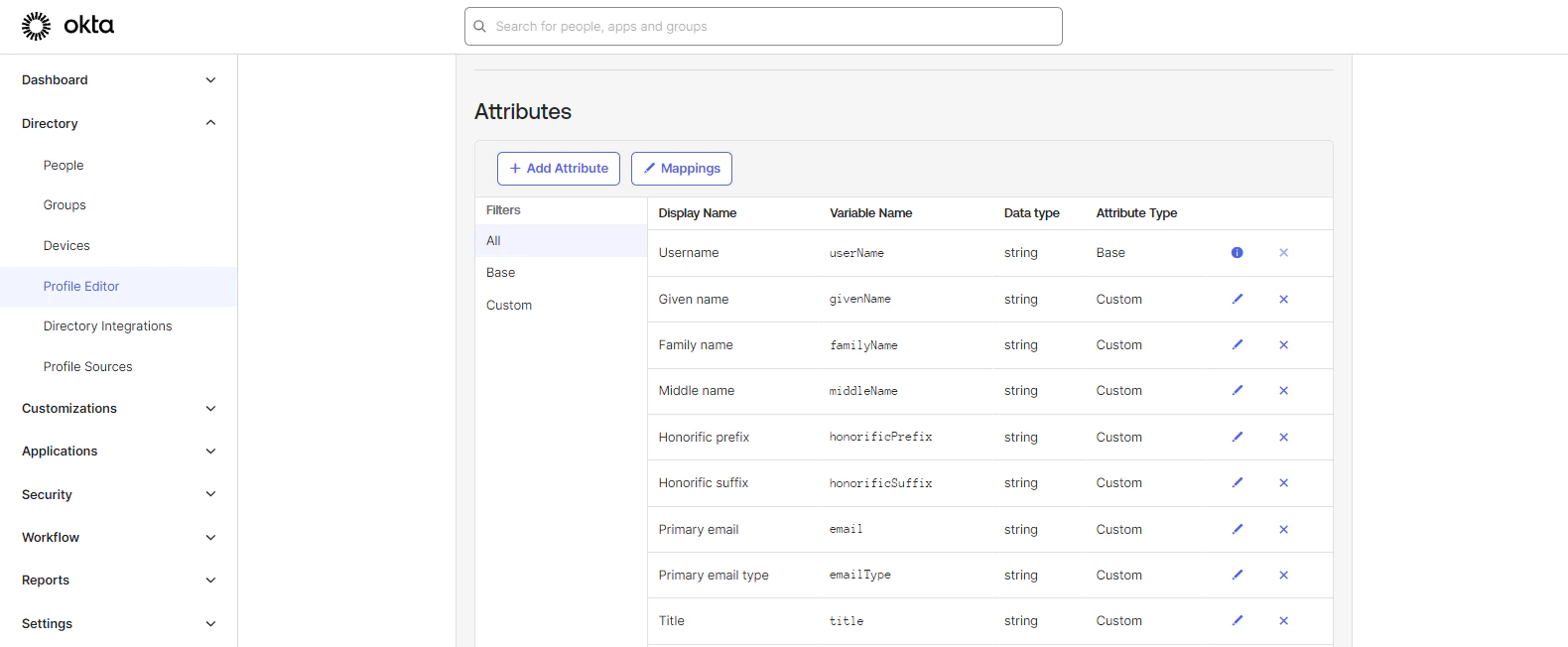
Go to Attributes and add a New Attribute.
Image
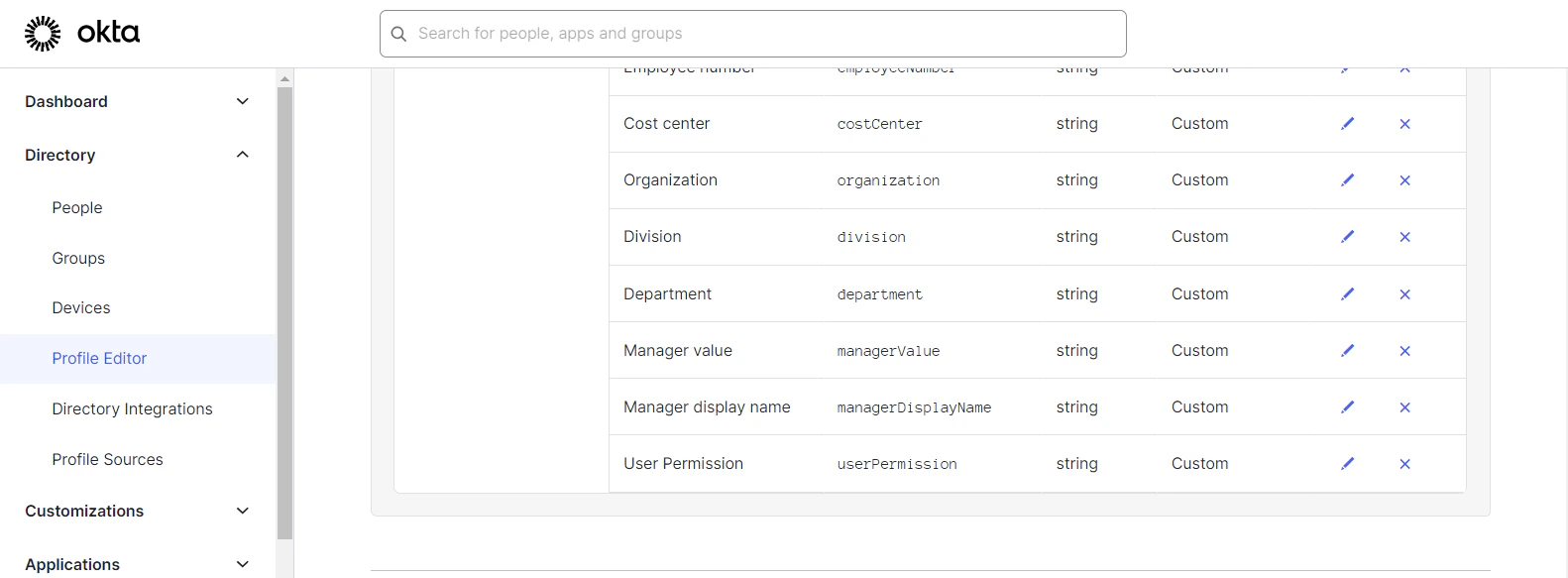
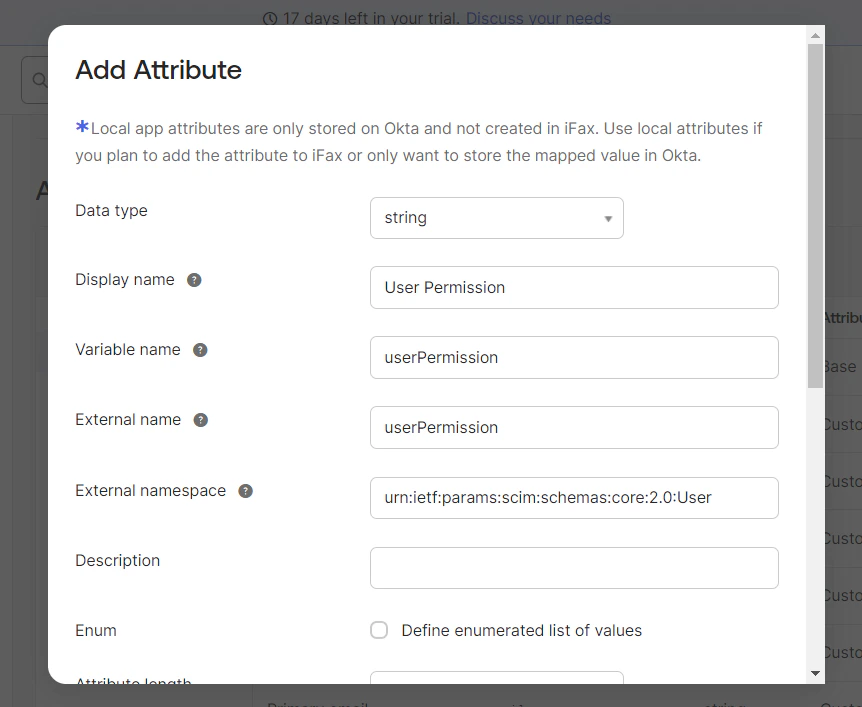
For Custom Attributes, set the following parameters: Data Type: String
Display Name: User Permission
Variable Name: userPermission
External Name: userPermission
External Namespace: urn:ietf:params:scim:schemas:core:2.0:User
Image
Here you can see the attribute added.
Image

Assign Or Delete User

To add a user, follow these steps: Go to People > Add Person
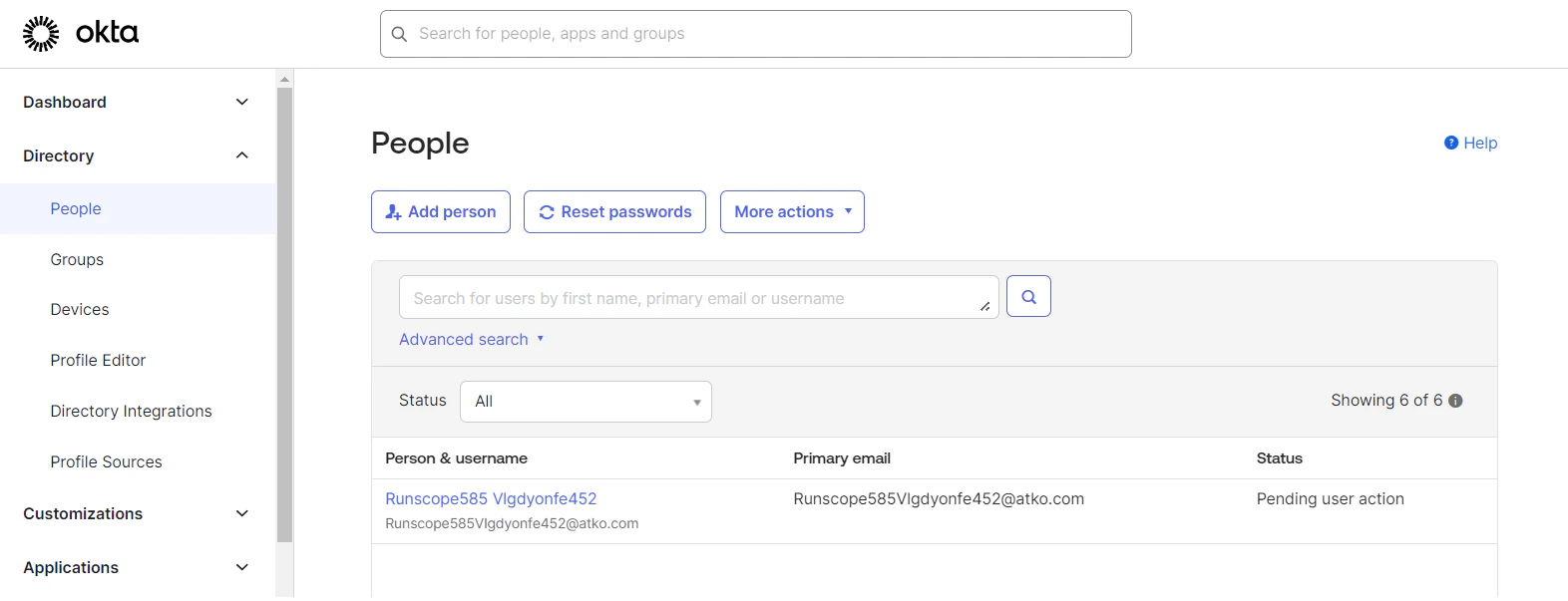
Image
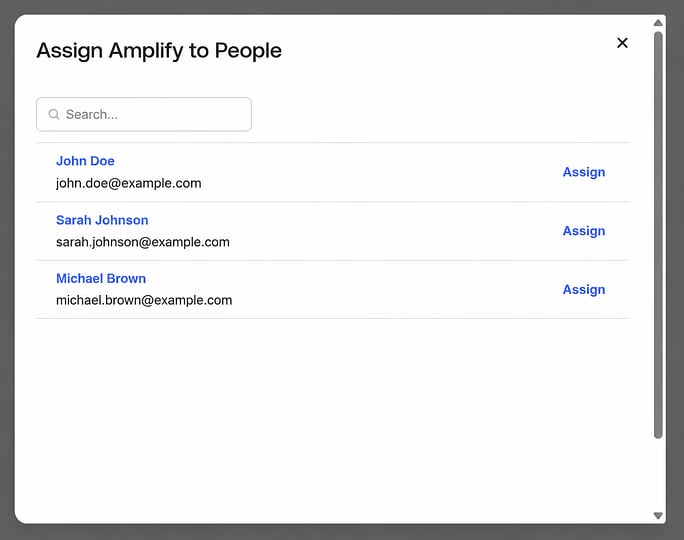
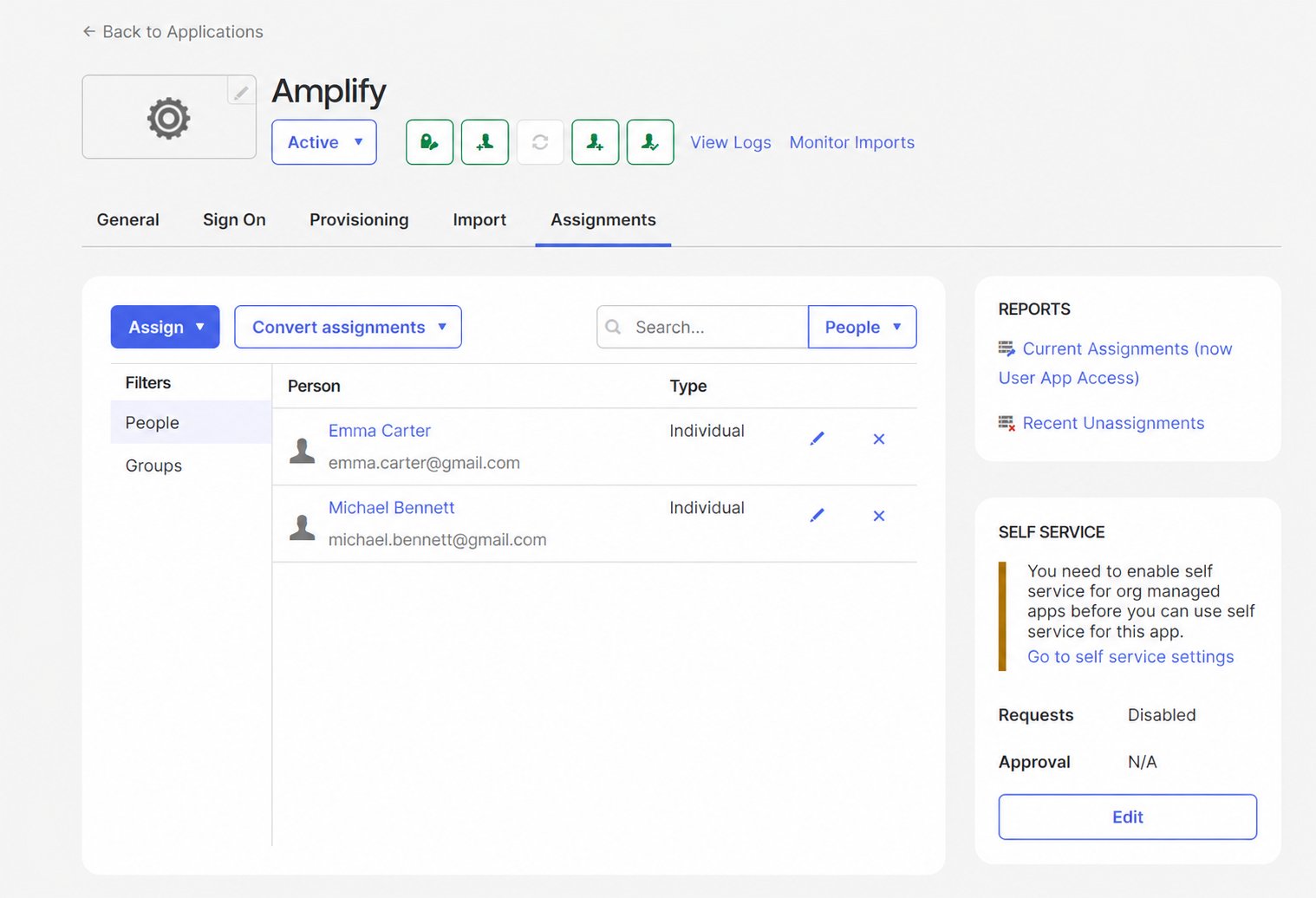
Go to Application > Assign > Assign People
Image
Select People to assign the App
Image
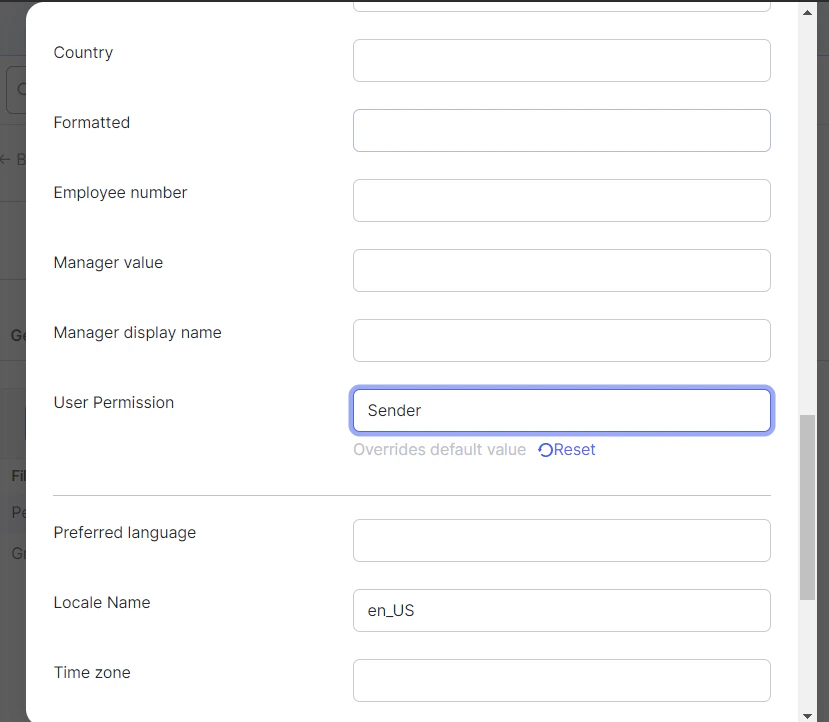
Add the custom permission in User Permission. This will be a group name, and that group name should exist in iFax.
Image

All permissions will be assigned to the user based on this group.

To Delete User

To delete a user, follow these steps: Go to Application > People Delete the specific user from here.